API-key
All api requests needs to be authenticated with an "API key" for the specific Timekit app you are operating within. You can find your app's api-key in the Admin Dashboard under "API settings".
Make sure NOT to share your api-key anywhere publicly available! Otherwise anybody will be able to control your application, create bookings, change availability etc. Even increase your billing amount by creating resources.
Authentication is done using HTTP basic authentication, with an empty username and the api-key as password. Don't send a placeholder username: a non-empty username makes the request fail with 401. Read our API reference on authentication to see the this in action.
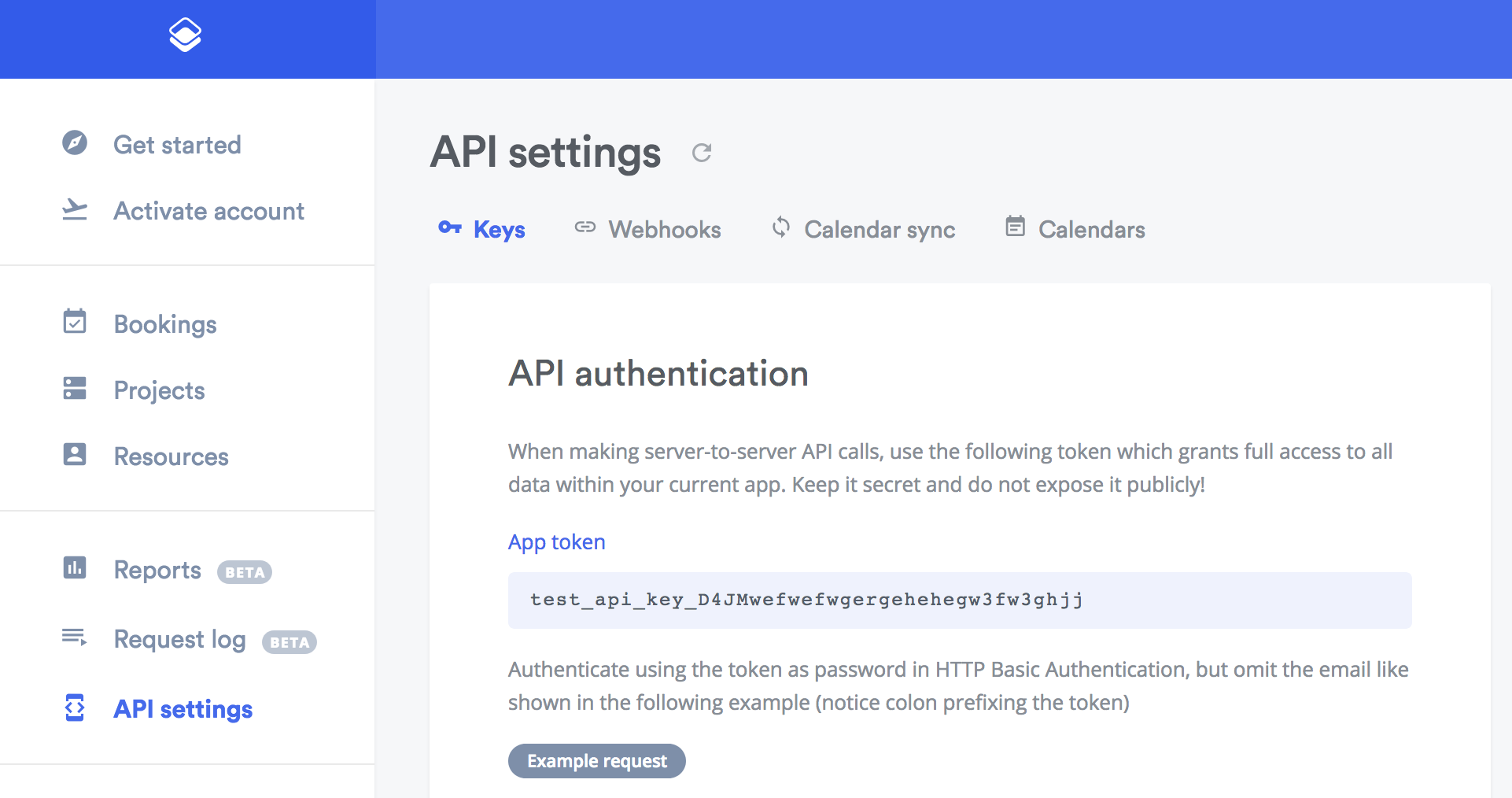
We have prefixed the api-key with "test" or "live" for test and live mode apps, in order to make it as visible as possible, which key should be used in which situations.